Answer

Regular users (those just reporting waste tonnage) will click on the Login icon from the home page, and complete the login process with id and password. Regular users can also register for the first time here, or get their password resent if needed. All Admin users are automatically logged in based on the permission level of their user id. This permission level is set by the system administrator.

Answer

  1. Login from the homepage.
  2. Click the 'Waste Origin Form' icon.
  3. This will be the Waste Forms page. On the top left, click the 'Start New Waste Origin Form' button.
  4. Select a facility, year, quarter, and click on the 'Create' button at the bottom.
  5. You may not be able to select the year and quarter if payment period is not open. Please refer to
  6. This will bring up the Enter Disposal Data page. Enter your data and tonnage.
  7. When all data is entered, click the '+Add Entry' button.
  8. This will enter your group of data to the table below. For another entry, repeat the previous step.
  9. Delete an entry by clicking on it in the list. This will highlight the red 'Delete Selected Entry' button, then click it.
  10. If you leave the site and come back later, the entries will still be there.
  11. When all tonnage has been entered, click the green 'Review Payment' button.
  12. Proceed with the payment process by clicking the 'Make Payment' button.

Answer

Form and payments are due four times annually, within 75 days of the end of each calendar quarter (on or before June 15, September 15, December 15, and March 15). A late processing fee of $1,000 will apply if payment is not received by due date. Delinquent penalties of 10% apply after 90 days from billing date with interest caclulated equal to the Internal Revenue Service Rate for unpaid income tax balances.

Quarter Payment Open Period Late Processing Fee Delinquent Penalties
Jan - Mar Apr 1 - Jun 15 After Jun 15 After Sep 15
Apr - Jun Jul 1 - Sep 15 After Sep 15 After Dec 15
Jul - Sep Oct 1 - Dec 15 After Dec 15 After Mar 15
Oct - Dec Jan 1 - Mar 15 After Mar 15 After Jun 15
Answer

All payments must be made online through Landfill Disposal Reporting website. After reporting the tonnage, the site will take you to a payment page where you can submit payment with ECheck.

Answer

A waste origin form is the group of disposal entries for a particular Facility, Year, and Quarter.

Each form has multiple entries selected by County, City, Category, and Subcategory.

So, to enter disposal entry for a facility, start by finding the Facility Name, Year, and Quarter that you want to report tonnage. Once inside that form, you can select jurisdiction of origin County/City, Waste Categories and Subcategories and tonnage you need to report.

Answer

When data has been entered for a Facility, Year, and Quarter, but the process has not been completed by making a payment, that form is considered open.

When payment has been made for a Facility, Year, and Quarter, that form is considered to be done. Corrections are allowed on reported (done) forms.

A waste form goes thru following states.
  • New: User is allowed to add disposal entries while the form is in 'New' state
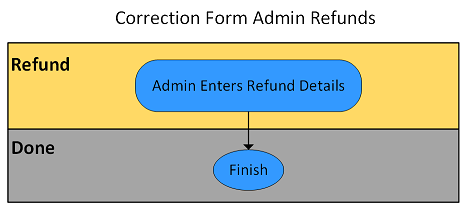
  • Refund: User has corrected the reported form and waiting for a refund
  • Done: User has finished reporting disposal entries after making payment.
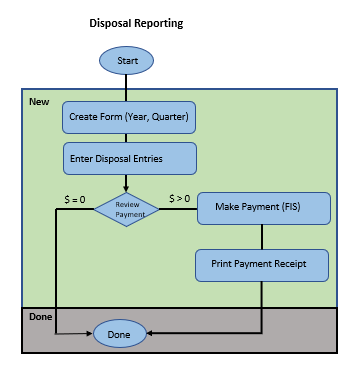
Disposal Reporting Flow
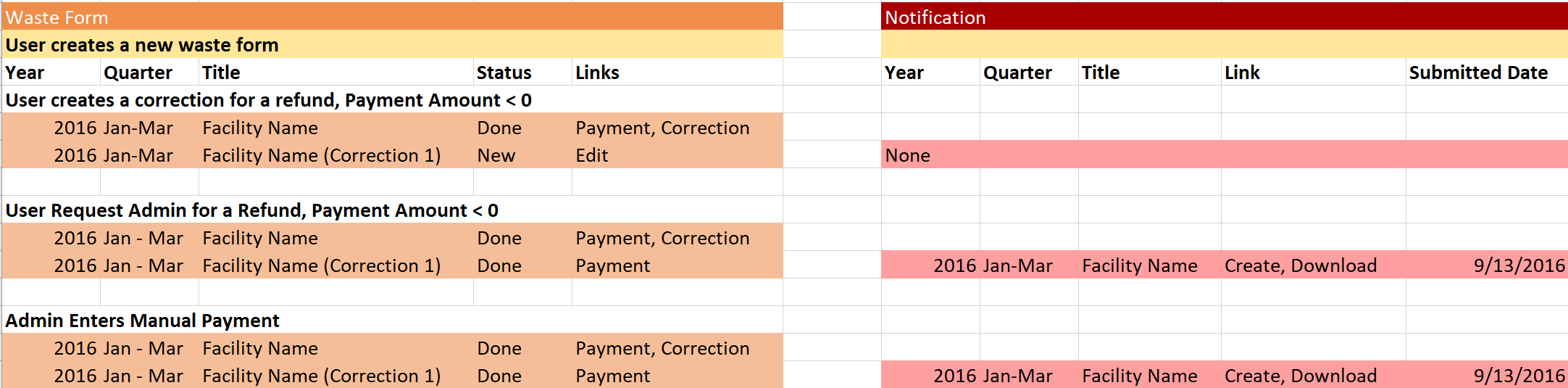
Disposal Reporting Correction Flow
Admin Refund Correction Flow

Answer

  1. Login from the homepage.
  2. Click the 'Waste Origin Form' icon.
  3. This will be the Waste Forms Page.
  4. Find the entry in the list that you wish to correct, and click on Edit next to the pencil icon.
  5. The data previously entered for this facility will be displayed in the table below.
  6. Select which County, City, Category, Subcategory, and External Facility(start typing name and options will show) you want to correct.
  7. Enter the new value of Tons that this entry should be, and click the gold '+Add Entry' button
  8. The new tonnage entered will be updated in the table, and below the +Add Entry button it will display the previous and new corrected value.
  9. If you want the table to display the new value, hit F5 on your keyboard to refresh.
  10. The new corrected value will now be used on the Review Payment page.
  11. Click the Review Payment button to proceed and report the form.

<Answer

  1. Login from the homepage.
  2. Click the 'Waste Origin Form' icon.
  3. This will be the Waste Forms Page.
  4. Find the entry in the list that you wish to correct, and click on 'Correction' next to the wrench icon.
  5. The data previously entered for this facility will be displayed in the table below.
  6. Select which County, City, Category, Subcategory, and External Facility(start typing name and options will show) you want to correct.
  7. Enter the new value of Tons that this entry should be, and click the gold 'Add/Correct Entry' button
  8. The new tonnage entered will be updated in the table, and below the 'Add/Correct Entry' button it will display the previous and new corrected value.
  9. If you want the table to display the new value, hit F5 on your keyboard to refresh.
  10. The new corrected value will now be used on the Review Payment page.
  11. If the corrected value is lower than the original value, you may be entitled to a refund. If so, select 'Request Refund' on the Review Payment page
  12. If the corrected value is higher than the original value, you will need to submit payment.
  13. Either way, click the Review Payment button to proceed and report the form.

Answer

Please send an email to the Facility Administrator with the updated information, they will update the contact information.

Answer

  1. No need to Login from the homepage.
  2. Click the 'Archive' icon on the homepage.
  3. This will be the Archived Disposal Reports page.
  4. When all information is entered, click the 'Submit' button.
  5. This will bring up the report for the specified data.
  6. If you need to print the data, right click on the page and select Print or Print Preview on the popup, and follow the instructions.

Answer

If a city is not listed, choose "Unincorporated".

Answer

  1. Create a new wasteform. (the status will = 'New')
  2. Make a payment for the wasteform. (the staus will = 'Done')
  3. At this point, the user is done.
Create New Waste Form

Answer

  1. Find the form that needs a correction. (the status will = 'Done')
  2. Start a new correction form. (the status will = 'New' for the Correction Form)
  3. If the correction is for an amount less than what you paid before, you will click the Request Refund button on the Review Payment page (the status will = ‘Refund’). Wait for the Admin to finish processing the refund (the status will = ‘Done’).
  4. If the correction is for an amount more than (or equal to) what you paid before, a new payment will need to be made (the status will = 'Done').
Waste Form Correction Flow